Digital Signage Player User Guide
From initial activation to managing your signage content network. Learn how to get running reliably.
1. Initial Activation
When you launch the app on your TV for the first time, you will land on the Device Activation screen. This is where your device links to your premium license. Purchase your license key securely via the link on BarnieCatApps.com, then enter the unique key into the Partner Code field.
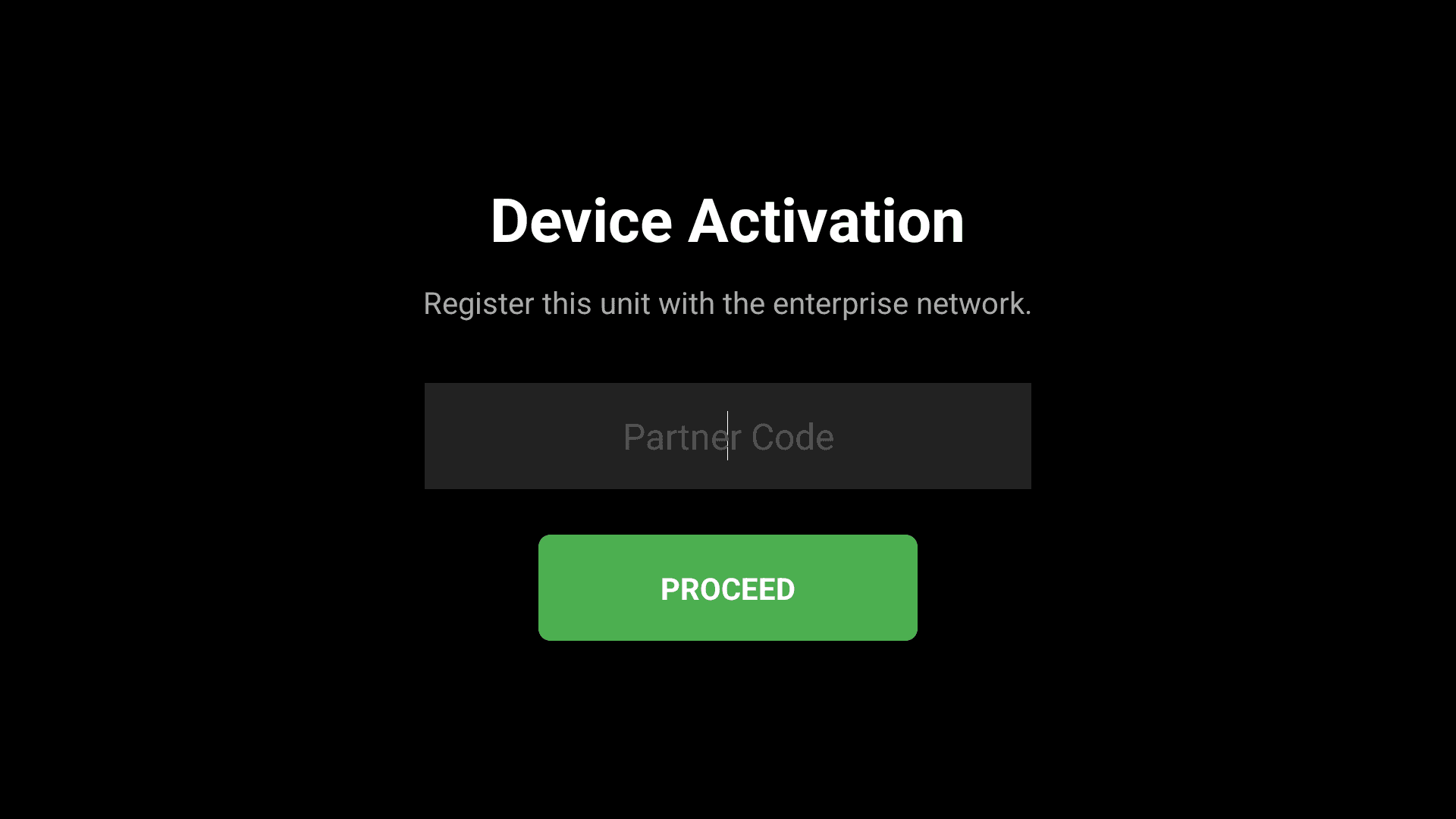
Enter your single-device license key into the Partner Code field to proceed.
2. Name & Security Setup
Next, you will be prompted to name your screen (e.g., "Lobby Menu") and establish a secure 4-digit PIN. This PIN protects your sign from unauthorized changes on your local network. Once entered, click Start Player.
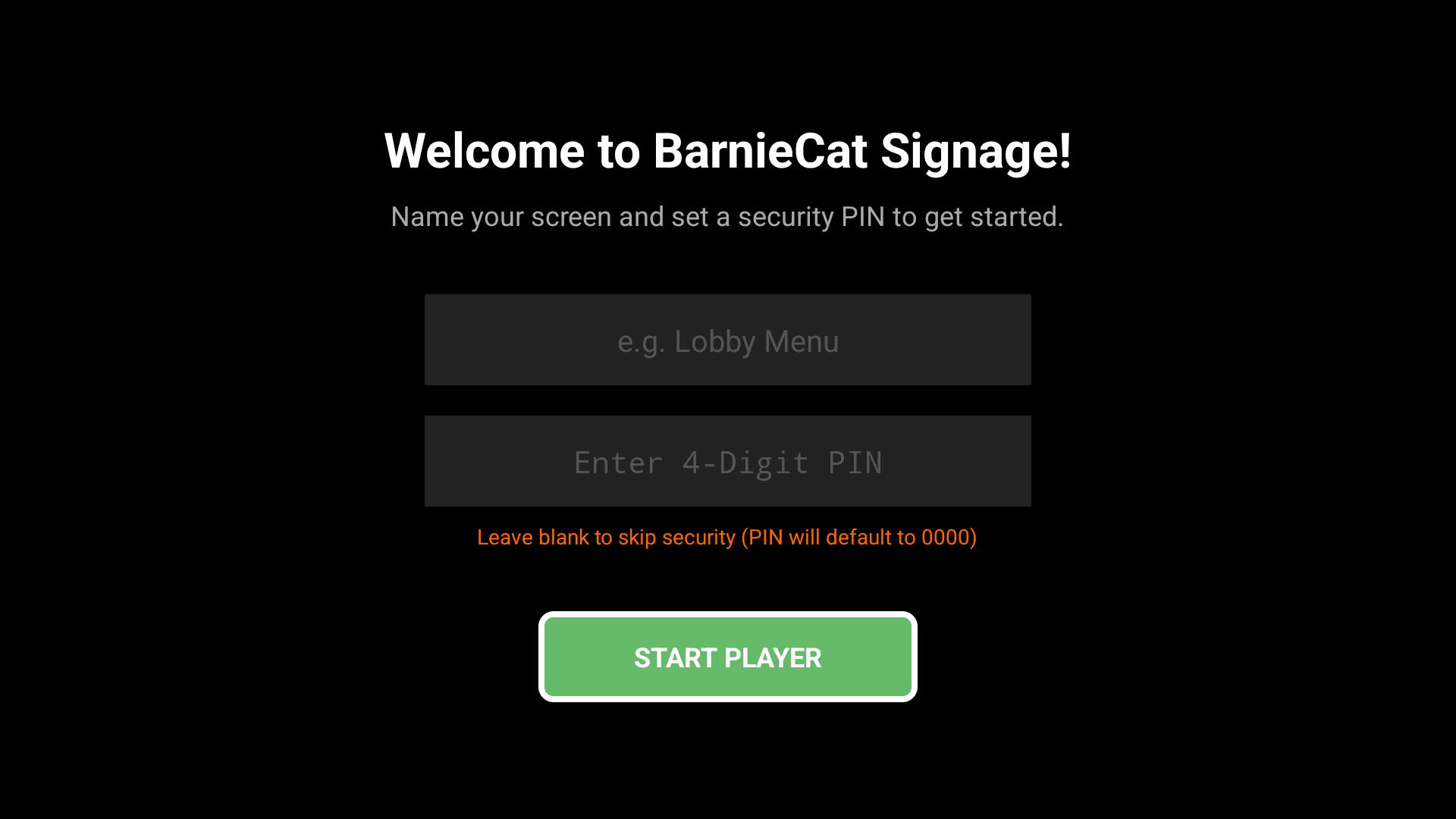
Name your display and set your custom security PIN before starting the player.
3. Access the Admin Panel
Once the player is running, it will display a local IP address (e.g., http://10.0.2.15:8080) along with the Sign Name and PIN you just created. Type this exact address into your laptop or tablet browser while connected to the same Wi-Fi network to access the console.
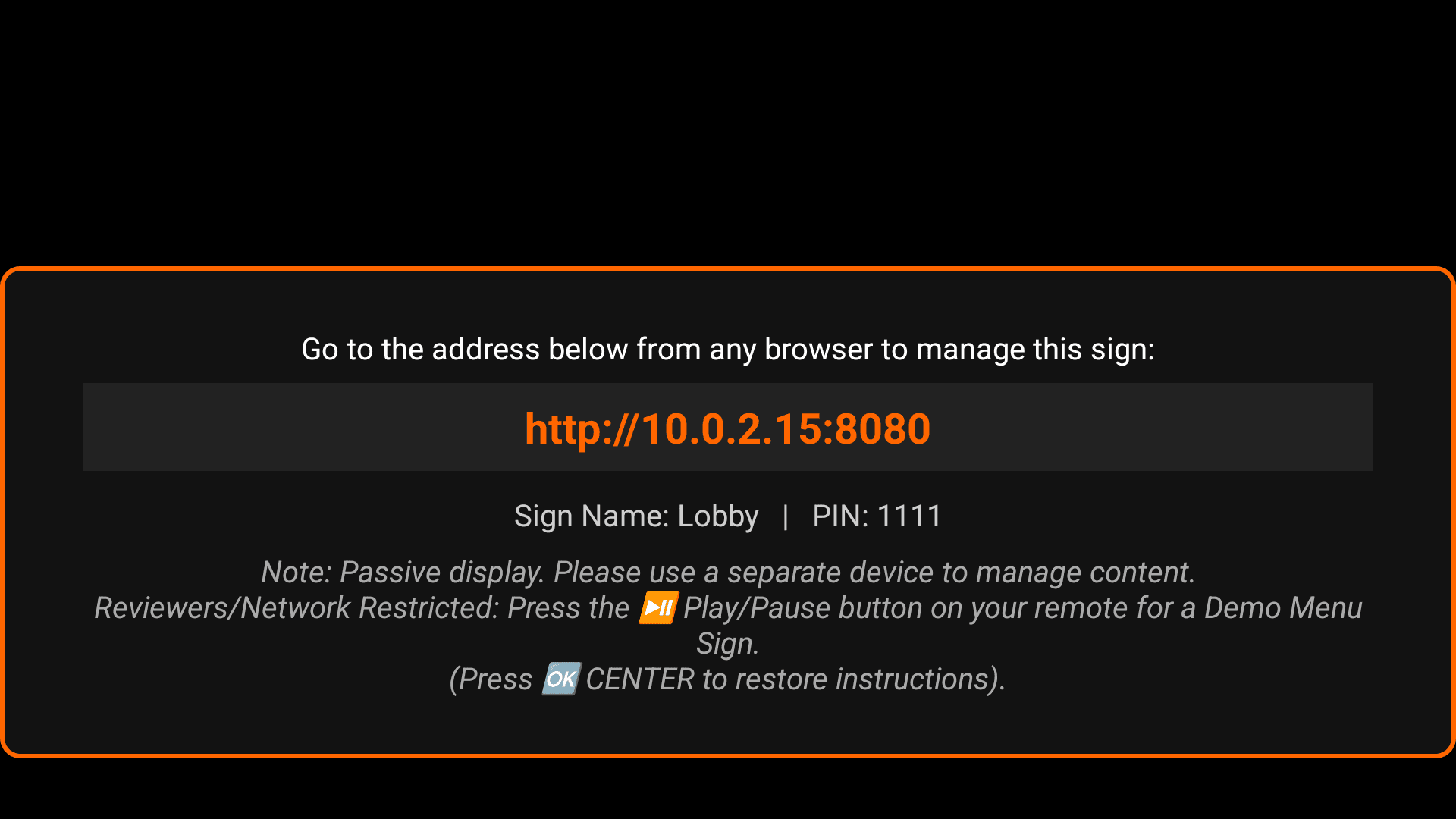
Type the displayed local IP address into your browser to manage this specific screen.
4. Upload & Manage Signs
Upon entering your PIN in your browser, you will arrive at the BarnieCatApps Management Console. Here you can manage your digital signage content network. Upload your signage payload as a ZIP file, select which slot is playing, and adjust your device settings.
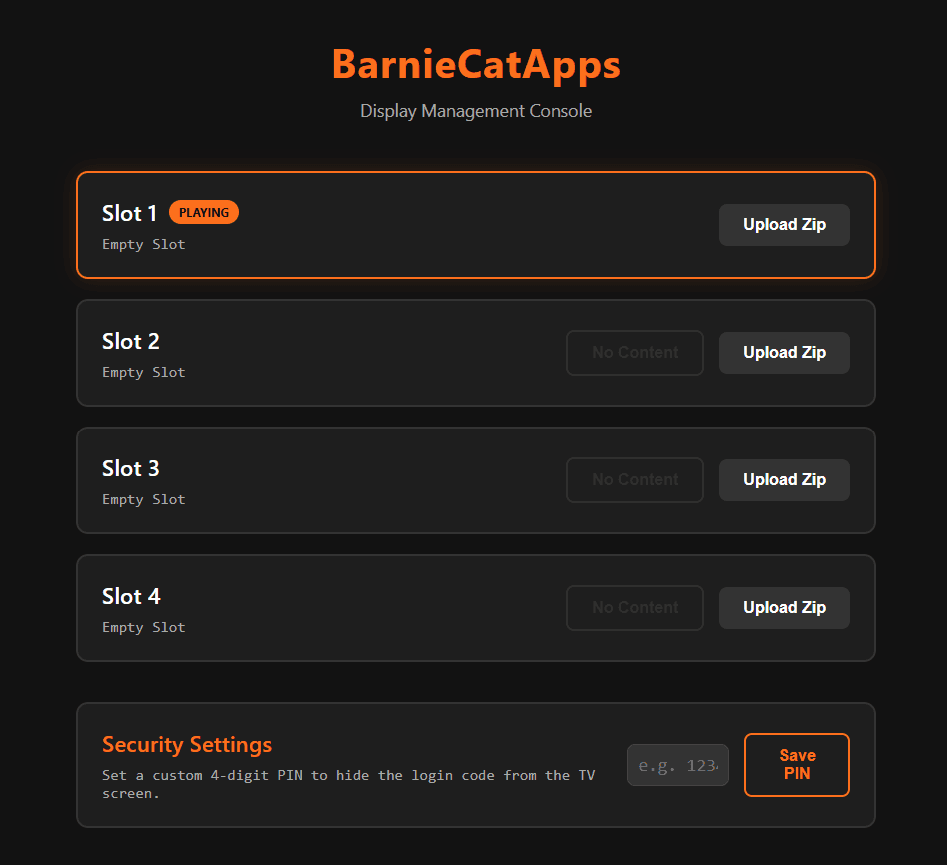
Manage up to four signage slots directly from your laptop or tablet.
Keep your unique local IP address and custom PIN completely safe—this is your private access key to update and manage your dynamic digital signs. You can always change your PIN later within the Management Console.
Notice on Payload Bundling
Please remember that your TV Player cannot import raw images or videos directly. You must use the Quick Sign Wizard or the Full Web Designer to bundle your media into the specific payload format required for dynamic playback on your device.